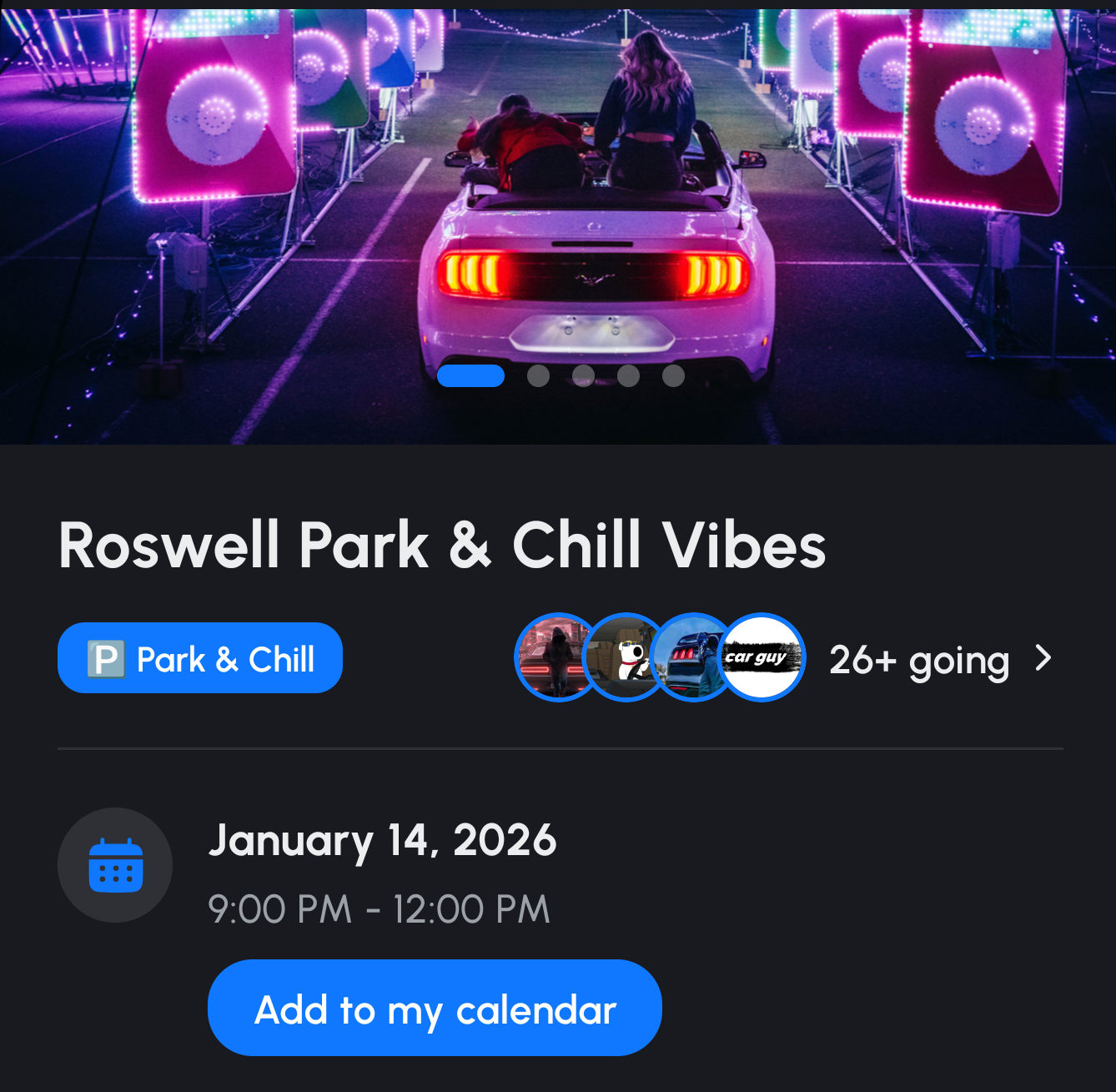
🚗 Bringing Communities Together
Car meets are the heartbeat of car culture. They're where enthusiasts connect, share builds, and build friendships. But planning one? That's the hard part.
Location scouting, promotion, RSVPs, managing attendees. It's a lot to handle. Or at least it used to be.
Spota's event tools change everything. Built specifically for car culture, they streamline everything from initial creation to post-event engagement. Whether you're planning a small Cars & Coffee or a massive festival, Spota gives you the tools to make it happen.
In this guide, you'll learn how to:
- Create and customize your event from start to finish
- Use advanced attendee filters to target the right crowd
- Use notifications and filters for maximum attendance
- Manage attendees and engagement before, during, and after
- Follow best practices for successful car meets
Let's get started.
🎯 Getting Started: Navigating to Event Creation
Step 1: Open the Plus Tab
In the Spota app, tap the Plus icon (+) in the bottom navigation bar. This is your creation hub for events, posts, and more.
Step 2: Select "Create Event"
From the Plus menu, tap "Create Event" or navigate to the "Event" tab. You'll be taken to the Event Creation screen.
Note: You must be logged in to create events. If you're not logged in, you'll be prompted to sign in first.
📝 Event Creation: Step-by-Step Guide
The Event Creation form guides you through each step. Let's break down every field and option.
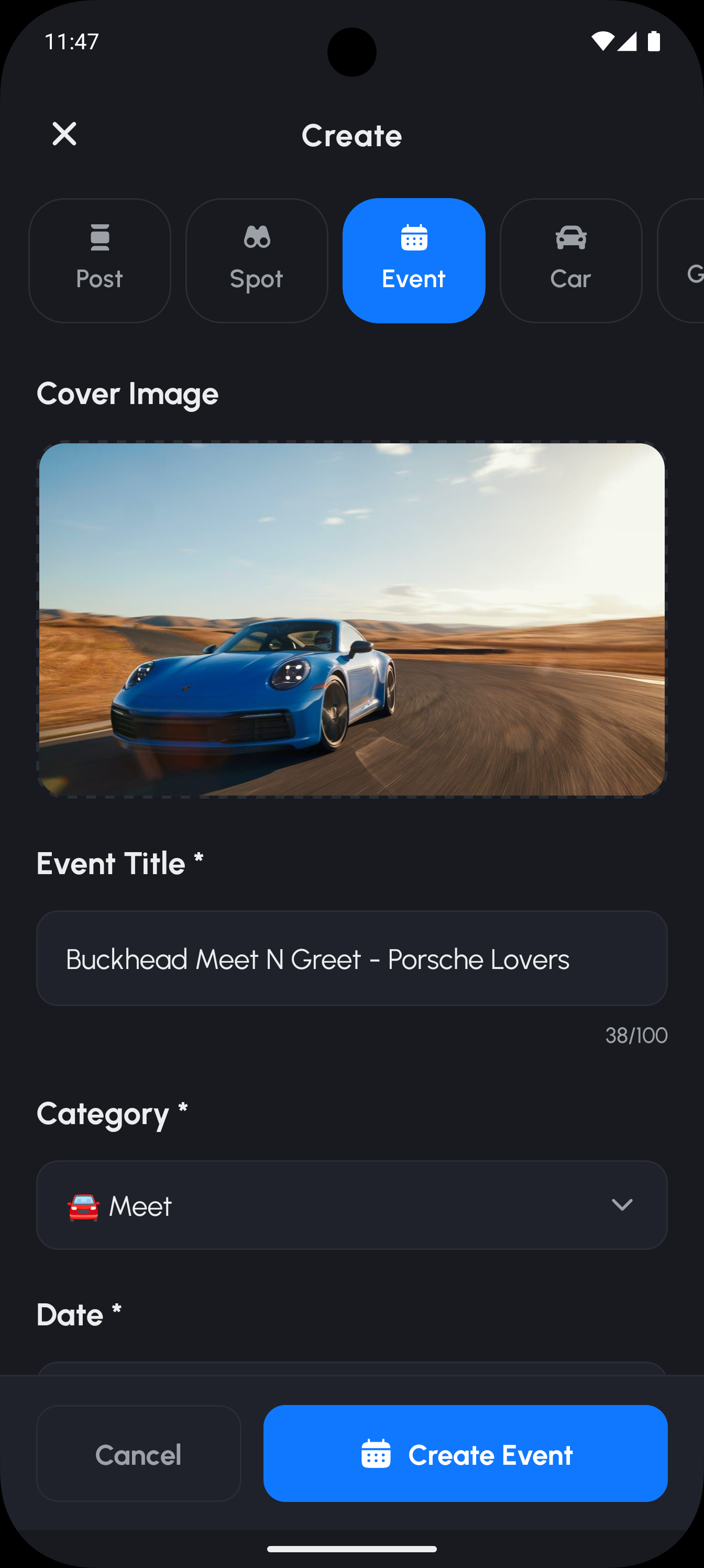
3.1 Cover Image (Optional but Recommended)
What it is: The hero image that appears at the top of your event page.
How to add it:
- Tap the cover image area
- Select a photo from your device's photo library
- Recommended aspect ratio: 16:9 (widescreen)
- Preview appears in the creation form
Why it matters:
- First impression for potential attendees
- Makes your event stand out in discovery feeds
- Sets the tone and vibe
- Professional appearance increases attendance
Pro Tip: Use a high-quality image that represents your event. A shot from a previous meet, a cool location, or your car works great. Avoid blurry or low-resolution photos.
3.2 Event Title (Required)
What it is: The name of your event (max 100 characters).
Best practices:
- Clear and descriptive
- Include location or day if relevant
- Make it searchable
- Keep it concise but informative
Good examples:
- "Downtown Saturday Night Meet"
- "Spring Cars & Coffee"
- "Miami Beach Supercar Show"
- "Weekly Tuesday Tunnel Run"
Bad examples:
- "Meet" (too vague)
- "The Best Car Meet Ever!!!!!" (unprofessional)
- "Cars" (not descriptive)
Character counter: Shows X/100 as you type.
3.3 Event Category (Required)
What it is: The category that classifies your event type. This helps users discover events and sets expectations.
Choose one of these 9 categories:
- 🚘 Meet: General car meetups, casual gatherings
- 🛣️ Cruises: Group drives, cruise events, road trips
- 🏁 Underground: Underground racing, private events, invite-only meets
- 🅿️ Park & Chill: Casual parking lot gatherings, low-key meets
- 📸 Rolling Shots: Photography-focused events, group photoshoots
- 🚦 Drag Nights: Drag racing events, track nights
- 🏆 Show: Car shows, competitions, judged events
- ♨️ Cars & Coffee: Morning coffee meets, weekend breakfast meets
- 🎉 Festivals: Large multi-day events, car festivals, conventions
Why it matters:
- Helps users filter and discover events
- Sets clear expectations for attendees
- Appears in category-specific feeds
- Makes your event more discoverable
Pro Tip: Choose the category that best matches your event's primary activity. If it's a mix, pick the dominant activity. You can always add details in the description.
3.4 Date & Time (Required)
What it is: When your event starts and ends.
Fields:
- Date picker: Select the event date (past dates are disabled)
- Start time: When the event begins (required)
- End time: When the event ends (required)
Duration guidelines:
- Meets: 2-4 hours
- Cruises: 2-6 hours (including drive time)
- Cars & Coffee: 2-3 hours
- Shows: 4-8 hours
- Festivals: Multiple days (create separate events or use description)
Why it matters:
- Helps attendees plan their day
- Appears in calendar views
- Enables time-based notifications
- Shows event duration at a glance
Pro Tip: Set realistic times. If you say 6 PM but people arrive at 5 PM, that's fine. But if you say 6 PM and nothing happens until 7 PM, attendees will be frustrated.
3.5 Location (Required)
What it is: Where your event takes place.
Features:
- Location picker with search
- Full address stored
- Coordinates saved for maps/directions
- Interactive map preview
Why it matters:
- Enables built-in directions for attendees
- Triggers "nearby" notifications
- Location-based discovery
- Helps attendees plan routes
- Prevents confusion about where to go
Pro Tip: Be specific with the address. Include street address, city, and state/province. If it's a large venue (like a parking lot), specify which section or entrance.
3.6 Description (Optional)
What it is: Detailed information about your event (max 500 characters).
What to include:
- Event rules and guidelines
- Parking information
- Schedule highlights
- Special guests or sponsors
- What to bring
- Weather contingency plans
- Contact information (if needed)
Good description example:
"Join us for our monthly Cars & Coffee meet! All car enthusiasts welcome. Free parking in the main lot. Coffee available for purchase. Please respect the venue and other attendees. Rain or shine. We'll move to the covered area if needed. See you there!"
Character counter: Shows X/500 as you type.
Pro Tip: Use the description to set expectations and answer common questions. The more information you provide, the fewer questions you'll get in event chat.
3.7 Event Media (Optional)
What it is: Multiple photos uploaded to create a gallery.
How to add:
- Tap "Add Media" or the media section
- Select multiple photos from your device
- Recommended: Square format (1:1) for best display
- Photos appear in a grid on the event details page
Why it matters:
- Shows what to expect
- Builds hype before the event
- Showcases the location or previous events
- Creates visual interest
- Increases engagement
Pro Tip: Upload 3-6 high-quality photos. Mix of location shots, previous event photos, and your car. Avoid too many photos (slows loading) or low-quality images.
🎛️ Advanced Features: Attendee Filters
What Are Attendee Filters?
Attendee filters let you control who can RSVP to your event based on car type. They're available to all Spota users.
4.1 Allowed Car Types Filter
How it works:
- All car types are enabled by default
- You can disable specific types to restrict attendance
- Only users with matching car types can RSVP "With My Car"
- Spectators and photographers can always RSVP regardless of filters
Available car types:
- Sports
- JDM
- Supercar
- Classic
- Muscle
- Tuner
- Exotic
- SUV
- Truck
- Hot Hatch
- Wagon
- Convertible
- Coupe
- Sedan
- Hatchback
- Roadster
- GT
- Hypercar
- Rally
- Drift
- Drag
- Off-Road
- Luxury
- Vintage
- Restomod
- Kit Car
- Electric
- Hybrid
- No Car (allows attendees without cars)
Use cases:
Exclusive events:
- JDM-only meet: Enable only "JDM"
- Classic car show: Enable only "Classic" and "Vintage"
- Supercar gathering: Enable only "Supercar" and "Hypercar"
Theme events:
- Muscle car meet: Enable only "Muscle"
- Off-road adventure: Enable only "Off-Road" and "Truck"
- Electric vehicle showcase: Enable only "Electric" and "Hybrid"
Open events:
- Leave all types enabled (default)
- Everyone is welcome
Pro Tip: Use filters to create focused events, but don't over-restrict. If you want a big turnout, keep it open. If you want a specific vibe, use filters strategically.
4.2 Custom Car Types
What it is: Allow specific make/model combinations for ultra-targeted events.
How it works:
- Select a make from the list
- Choose specific models from that make
- "Select All" option per make
- Search models within each make
- Selected combinations appear in a list
- Remove individual combinations as needed
Use cases:
Brand-specific events:
- "Corvettes Only": Select Chevrolet > Corvette
- "BMW M Series Meet": Select BMW > M3, M4, M5, etc.
- "Mustang Owners": Select Ford > Mustang (all trims)
Model-specific events:
- "GT-R Owners Only": Select Nissan > GT-R
- "Supra Meet": Select Toyota > Supra
- "Hellcat Gathering": Select Dodge > Challenger Hellcat, Charger Hellcat
Mixed custom filters:
- "German Performance": Select BMW, Mercedes-Benz, Audi > Performance models
- "Japanese Tuners": Select Honda, Toyota, Nissan > Tuner models
Pro Tip: Custom car types are powerful but restrictive. Use them for brand/model-specific clubs or exclusive events. For general meets, stick with car type filters or leave it open.
🔔 Notification Features
5.1 Notify Nearby Users
What it is: Sends push notifications to users within 50-100km of your event location.
How it works:
- Toggle "Notify Nearby Users" when creating or editing your event
- System identifies users within range
- Sends push notification about your event
- Increases visibility and attendance
Best practices:
- Use for public events wanting maximum attendance
- Enable 1-2 weeks before the event (not too early, not too late)
- Combine with other promotion methods
- Monitor RSVP counts after sending notifications
Pro Tip: This feature works best for events in populated areas. If you're in a rural area, the notification radius might not reach many users. Still valuable, but supplement with social media promotion.
5.2 Notify on Attendee Arrival
What it is: Organizer receives push notifications when attendees arrive at the event location.
How it works:
- Enable in your event settings when you want arrival alerts
- Uses location services (attendees must allow location access)
- Sends notification when attendee is near event location
- Helps track real-time turnout
Use cases:
- Monitor attendance in real-time
- Know when key attendees arrive
- Track event growth during the event
- Plan for capacity management
Pro Tip: This is especially useful for large events where you need to track attendance. For smaller meets, you might not need it, but it's still helpful to know who's arriving.
✅ Finalizing Your Event
Review All Fields
Before creating your event, review:
- [ ] Cover image looks good (if added)
- [ ] Title is clear and descriptive
- [ ] Category matches your event type
- [ ] Date and time are correct
- [ ] Location address is accurate
- [ ] Description includes important information (if added)
- [ ] Event media is uploaded (if added)
- [ ] Attendee filters are set correctly (if using them)
- [ ] Notifications are enabled (if using them)
Create Your Event
Tap the "Create Event" button at the bottom of the screen.
Processing:
- Cover image uploads (if added)
- Event is created in the system
- Media files upload (if added)
- Event is published immediately
Success:
- You're redirected to the Event Details page
- Event status is "Published" (live and discoverable)
- Event chat is automatically created
- You can start sharing and promoting
Pro Tip: Create your event 1-2 weeks in advance for best results. This gives people time to plan and RSVP, and gives you time to promote.
📊 Post-Creation: Event Management
7.1 Viewing Your Event
The Event Details screen shows everything about your event:
Hero section:
- Cover image carousel (if multiple images)
- Event title
- Category with icon
- Date and time
- Location with map preview
Attendee section:
- Total attendee count
- Attendee avatars (preview)
- RSVP breakdown (Cars, Spectators, Photographers)
- "View All Attendees" button
Organizer section:
- Your profile (as organizer)
- Edit button (if you're the organizer)
Content section:
- Description (if added)
- Media gallery (pre-event photos)
- Similar events (recommendations)
Actions:
- RSVP options (for attendees)
- Share event
- Get directions
- Save event
- Add to calendar
7.2 Editing Your Event
How to edit:
- Open your event's Event Details screen
- Tap "Edit" (organizer only)
- Event Edit Screen opens
What you can edit:
- Title
- Description
- Category
- Date
- Start time
- End time
- Location
- Cover image
- Status (Published, Draft, Cancelled)
Limitations:
- Cannot edit after event ends
- Some fields may have restrictions (check app for current limits)
Updates:
- Changes save immediately
- Attendees see updated information
- Notifications may be sent for significant changes (date, location)
Pro Tip: Edit as needed, but try to finalize details before creating. Frequent changes can confuse attendees. If you must change something major (date, location), post in event chat to notify attendees.
7.3 Event Status
Your event can have three statuses:
Published:
- Event is live and discoverable
- Appears in feeds and search
- Users can RSVP
- Event chat is active
- Default status when created
Draft:
- Event is saved but not published
- Not discoverable
- Only you can see it
- Useful for planning ahead
- Publish when ready
Cancelled:
- Event is marked as cancelled
- Visible to attendees (shows "Cancelled" badge)
- Attendees are notified
- Event chat remains open (for communication)
- Useful if you need to cancel last-minute
Pro Tip: Use Draft status to prepare events in advance. Create the event, save as draft, then publish when you're ready to promote. This gives you time to perfect all details.
💬 Engaging with Attendees
8.1 Event Chat
What it is: Real-time messaging system automatically created with every event.
Features:
- Text messaging
- Photo/video sharing
- Real-time updates
- All attendees can participate
Who can join:
- Automatically: Event organizer
- By RSVP: Anyone who RSVPs to the event
- From event page: Attendees can join from event details
Use cases:
Pre-event:
- Answer questions
- Share updates and reminders
- Build hype and excitement
- Coordinate caravans or meetups
- Share weather updates
During event:
- Share real-time updates
- Coordinate activities
- Share photos as they happen
- Communicate changes or announcements
Post-event:
- Share photos and videos
- Thank attendees
- Gather feedback
- Announce follow-up events
- Keep the community engaged
Pro Tip: Be active in event chat, especially before the event. Answer questions quickly, share updates, and build excitement. An engaged chat leads to better attendance.
8.2 Event Attendees Management
How to view attendees:
- Open your event's Event Details screen
- Tap "View All Attendees" or attendee count
- Event Attendees Screen opens
Features:
- Complete attendee list
- Filter options: All, Cars, Spectators, Photographers
- Stats: Total count, Cars count, Spectators count, Photographers count
- Attendee profiles (tap to view)
- Car information (for "With My Car" RSVPs)
- Follow button (for each attendee)
Use cases:
- See who's coming
- Check car types and models
- Identify photographers for media coverage
- Follow attendees to build community
- Plan for capacity
Pro Tip: Review the attendee list regularly, especially as the event approaches. This helps you prepare for the crowd and identify key attendees (photographers, influencers, etc.).
8.3 RSVP System
Attendees can RSVP in three ways:
🚗 With My Car:
- Attendee brings a car
- Select from their Spota Garage
- Car appears in attendee list
- Counts toward "Cars" total
- Subject to car type filters (if enabled)
👀 As Spectator:
- Attendee comes without a car
- Counts toward "Spectators" total
- Always available (not affected by car type filters)
- Good for friends, family, or people interested in the scene
📸 As Photographer:
- Attendee comes to photograph
- Counts toward "Photographers" total
- Always available (not affected by car type filters)
- Helps organizers identify media coverage
Organizer benefits:
- See RSVP counts and breakdown
- View complete attendee list
- See which cars are coming
- Track capacity
- Identify photographers
Pro Tip: Encourage RSVPs early. Share the event link, post in event chat, and remind people to RSVP. More RSVPs = better planning and higher actual attendance.
🔍 Discovery & Promotion
9.1 Event Discovery Features
Spota makes it easy for users to find your event:
Events Near You:
- Location-based discovery
- Shows events within a radius
- Updates based on user location
- Primary discovery method
Featured Events:
- Highlighted events (selected by Spota)
- Appears in featured sections
- Increases visibility
- Not guaranteed (selected based on various factors)
Category Filtering:
- Filter events by category
- Users can browse specific event types
- Helps target the right audience
- Appears in category feeds
Search:
- Search by title, location, or category
- Text-based search
- Helps users find specific events
- Useful for recurring events
Pro Tip: Use a clear, searchable title and accurate location. This helps your event appear in relevant searches and location-based feeds.
9.2 Event Details Sharing
Attendees and organizers can share events in multiple ways:
Event Link Sharing:
- Share event link via text, social media, email
- Recipients can open in Spota app or web
- Direct link to event details
- Best for promotion
Event Location/Directions Sharing:
- Share location or directions
- Opens in Maps app (Apple Maps, Google Maps)
- Useful for coordinating meetups
- Helps attendees find the location
Save Events:
- Save events for later
- Appears in saved events list
- Reminders may be sent (check app for current features)
- Useful for planning ahead
Add to Device Calendar:
- iOS and Android support
- Adds event to device calendar
- Includes date, time, and location
- Helps attendees remember
Pro Tip: Share your event link on social media, in car groups, and with friends. The more people see it, the more RSVPs you'll get. Use event chat to encourage sharing.
🗺️ Attendee Features (For Your Audience)
10.1 Event Directions
What it is: Built-in directions from user's location to event.
Features:
- Route calculation (distance, estimated time)
- Interactive map with route
- Open in Maps (Apple Maps, Google Maps)
- Share route with others
- Copy coordinates
How to use:
- Tap "Get Directions" on event details
- System calculates route from current location
- Shows distance and estimated travel time
- Tap to open in preferred Maps app
- Share route if needed
Pro Tip: As an organizer, test the directions yourself. Make sure the location pin is accurate and the route makes sense. Update location if needed.
10.2 Event Location
What it is: Interactive map showing event location.
Features:
- Event marker on map
- Event cover image on marker (if available)
- Tap to view full map
- Tap for directions
- Zoom and pan
Why it matters:
- Visual confirmation of location
- Helps attendees plan routes
- Shows nearby landmarks
- Prevents confusion
10.3 Event Media Gallery
What it is: Grid layout of all event media (3 columns).
Features:
- Browse pre-event photos
- Tap to view full-size
- Organized by event
- Shows what to expect
Use cases:
- Preview the location
- See previous events
- Build excitement
- Showcase the vibe
Pro Tip: As an organizer, upload quality media that represents your event well. Mix of location, cars, and atmosphere. Update gallery as you add more photos.
✅ Best Practices for Successful Car Meets
11.1 Before Creating
Check local regulations:
- Research permits if needed
- Check noise ordinances
- Understand parking rules
- Know local laws about gatherings
Confirm venue permissions:
- Get written permission if required
- Understand venue rules
- Confirm parking availability
- Check for restrictions
Choose accessible, safe locations:
- Easy to find
- Adequate parking
- Safe for attendees
- Good for photos (optional but nice)
Plan for parking:
- Estimate capacity
- Identify overflow areas
- Consider parking fees
- Plan for different vehicle sizes
11.2 Creating the Event
Use a clear, descriptive title:
- Include location or day
- Make it searchable
- Keep it professional
- Match the event type
Select the correct category:
- Choose the best match
- Sets expectations
- Helps discovery
- Appears in category feeds
Write a detailed description:
- Include rules and guidelines
- Specify parking information
- Add schedule highlights
- Mention special guests or sponsors
- Answer common questions
Add quality cover image and media:
- High-resolution images
- Relevant to event
- Professional appearance
- Builds excitement
Set realistic duration:
- Consider actual event length
- Include setup/breakdown time
- Account for late arrivals
- Plan for extensions
Use filters wisely:
- Target the right audience
- Don't over-restrict
- Balance exclusivity and attendance
- Test different approaches
11.3 Promoting Your Event
Create event early:
- 1-2 weeks in advance minimum
- Gives people time to plan
- Allows for promotion
- Builds anticipation
Use nearby notifications:
- Notify nearby users (50-100km)
- Increases visibility
- Reaches targeted audience
- Best for public events
Share event link on social media:
- Post on Instagram, Facebook, Twitter
- Share in car groups
- Tag relevant accounts
- Use hashtags
Engage in event chat:
- Answer questions quickly
- Share updates and reminders
- Build hype
- Encourage RSVPs
Update with media/teasers:
- Add photos as you prepare
- Share behind-the-scenes
- Build excitement
- Show what to expect
11.4 During the Event
Monitor attendee arrivals:
- Track real-time attendance
- Know when key people arrive
- Plan for capacity
- Manage flow
Use event chat for updates:
- Share real-time announcements
- Coordinate activities
- Answer questions
- Share photos and videos as they happen
- Keep attendees informed
Document with photos/videos:
- Capture the event
- Share in event chat
- Build content for future events
- Show appreciation for attendees
- Create memories
Interact with attendees:
- Welcome people as they arrive
- Answer questions in person
- Build relationships
- Show appreciation
- Make everyone feel welcome
Pro Tip: Be present and engaged during your event. Don't just create it and disappear. Active organizers create better events and build stronger communities.
11.5 After the Event
Add post-event media:
- Upload photos from the event
- Share videos and highlights
- Update the event gallery
- Show what happened
- Build content for future promotion
Thank attendees in chat:
- Post a thank-you message
- Acknowledge key contributors
- Show appreciation
- Build goodwill
- Encourage future attendance
Gather feedback:
- Ask for suggestions
- Learn what worked
- Identify improvements
- Listen to attendees
- Use feedback for next event
Plan follow-up events:
- Announce next event if recurring
- Share future plans
- Keep the momentum going
- Build a regular community
- Maintain engagement
Pro Tip: Post-event engagement is crucial for building a recurring community. Thank people, share photos, and announce future events. This turns one-time attendees into regular participants.
💎 Organizer Tools Overview
Attendee Filters
What you get:
- Attendee filters (car types)
- Custom car types (make/model filters)
- Better event targeting
- More control over attendance
Best for:
- Organizers who want targeted events
- Brand/model-specific meets
- Exclusive or themed events
- Fine-tuned audience control
Event Notifications
What you get:
- Notify nearby users (50-100km radius)
- Receive attendee arrival notifications
- Stronger event promotion and day-of management
Best for:
- Organizers wanting maximum attendance
- Public events needing promotion
- Large events requiring management tools
- Regular community organizers
Pro Tip: Create a free Spota account and try event creation with filters and notifications. Everything you need to run a meet is included.
❓ Troubleshooting & FAQ
Common Questions
Can I edit my event after creation?
Yes! You can edit your event at any time until it ends. Open your event, tap "Edit," and make changes. Updates save immediately. However, you cannot edit events after they've ended.
How do I cancel an event?
Open your event, tap "Edit," and change the status to "Cancelled." Attendees will see a "Cancelled" badge, and they'll be notified. Event chat remains open for communication.
Can I change the event category?
Yes, you can change the category in the Edit screen. This helps if you initially chose the wrong category or if the event type changes.
Is Spota free to use for event planning?
Yes. Creating events, attendee filters, and notifications are available to all Spota users at no cost.
Can I delete an event?
Currently, you can cancel events (which marks them as cancelled) but cannot permanently delete them. Cancelled events remain visible with a "Cancelled" badge for reference.
How many events can I create?
Check the Spota app for current limits. You can create events on a free Spota account.
What happens if I change the event date or location?
Attendees are typically notified of significant changes (date, location). However, it's best practice to post in event chat to ensure everyone knows about changes.
Can attendees see who else is coming?
Yes! All attendees can view the attendee list, see who's RSVP'd, and view attendee profiles (based on privacy settings). This helps build community and coordination.
How do I handle inappropriate behavior at my event?
Use event chat to set clear rules in the description. If issues arise, you can remove problematic content from chat. For serious issues, report through Spota's reporting system.
Can I transfer event ownership to someone else?
Currently, event ownership cannot be transferred. The creator remains the organizer. If you need to transfer, you may need to cancel and have the new organizer create a new event.
Why isn't my event showing up in "Events Near You"?
Events appear based on location and timing. Make sure your location is accurate and your event is published (not draft). Events typically appear within the notification radius (50-100km for featured events).
How do I get my event featured?
Featured events are selected by Spota based on various factors (quality, engagement, timing, location, etc.). There's no guaranteed way to be featured, but creating quality events with good descriptions, media, and engagement helps.
Pro Tip: If you have questions or issues, check the Spota app's help section or contact support. The community is also helpful. Ask in event chats or Spota groups.
🎯 Conclusion
Planning a car meet doesn't have to be complicated. With Spota's event tools, you have everything you need to create, promote, and manage successful events. All in one place.
Key takeaways:
- Easy creation: Step-by-step form guides you through everything
- Powerful filters: Target the perfect audience with car-type and make/model filters
- Built-in engagement: Event chat, RSVP system, and attendee management keep everything organized
- Promotion tools: Nearby notifications help maximize attendance
- Complete management: Edit, update, and manage your event from start to finish
Whether you're organizing a small Cars & Coffee or a massive festival, Spota's event tools give you the foundation for success. The rest is up to you. Create quality events, engage with your community, and build something special.
Ready to create your first event?
- Open Spota
- Tap the Plus icon (+)
- Select "Create Event"
- Fill out the form
- Hit "Create Event"
It's that simple. Start small, learn what works, and grow from there. Every great car meet starts with a single event.
Share your experience: Tag Spota on social media when you create events. We love seeing what the community builds together.
Now go create something amazing. Your community is waiting.
Planning events isn't just about logistics. It's about building community, creating memories, and bringing car culture together. Spota gives you the tools. You bring the passion. Together, that's how great car meets happen.